Help topics
On this page
Set up microphone noise suppression
Use light noise suppression for fan noise. If other people are talking nearby, record a voice sample and compare personal voice isolation with the original audio.
Reduce steady noise or other voices
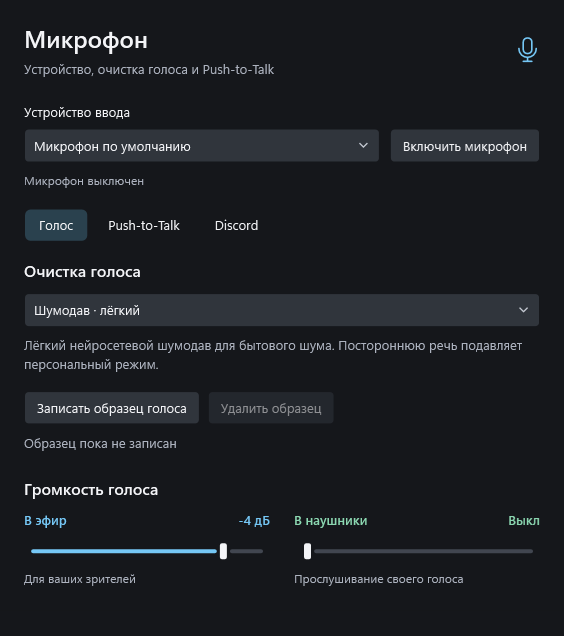
In the main audio panel, open Configure beside the microphone, choose the input device and turn it on. The Voice tab offers the original signal, light DPDFNet2 suppression for steady noise, and My voice only for isolating the speaker in your saved profile. Processing runs on your computer.
Use Before and After in the player below to hear light noise suppression on the same phrase with fan noise.
Record a sample for personal voice isolation
Select Record voice sample and read the four prompts from your usual streaming position. You can release push-to-talk while recording the sample. The studio selects three seconds of clear speech and protects the saved sample with your Windows account.
Record a fresh sample after switching microphones. To hear how well the mode separates voices in your room, make a test recording in which you and another person speak at the same time.
Compare processing modes on your own microphone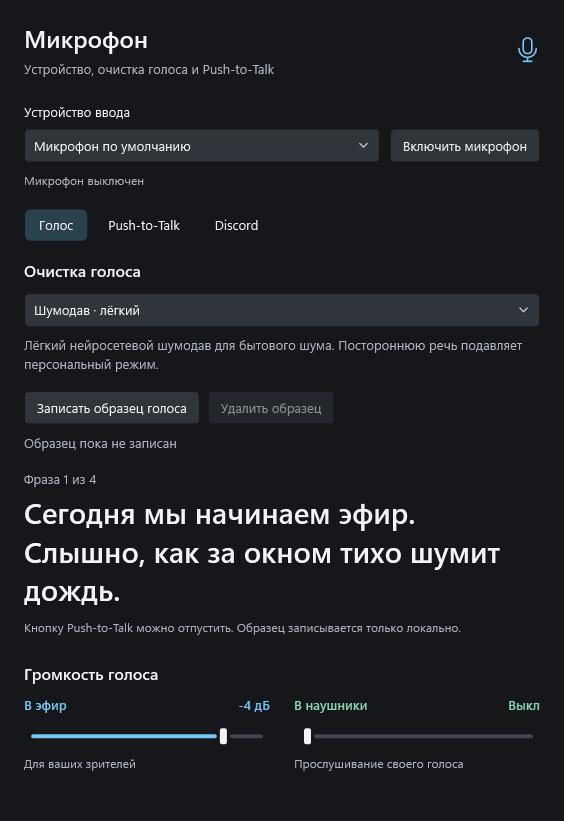
Set up push-to-talk
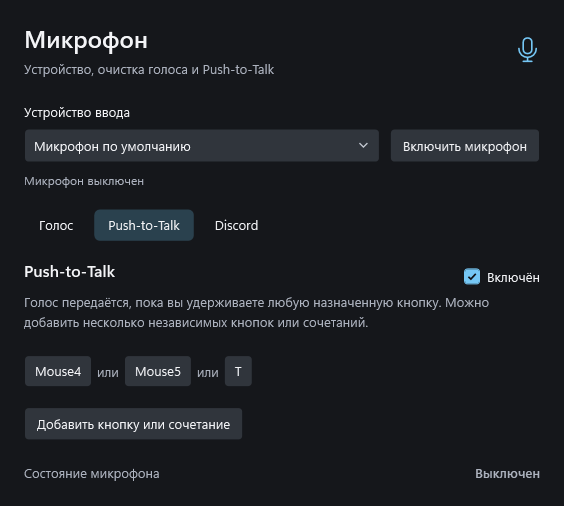
The microphone starts switched off. Turn it on and open the Push-to-Talk tab. Mouse4, Mouse5 and T are separate bindings. Hold any one to talk. If you hold two, your microphone stays open until you release the last one.
To use a chord, add the whole combination as a single binding. Hold all the keys in that combination together.
Send the processed microphone to Discord
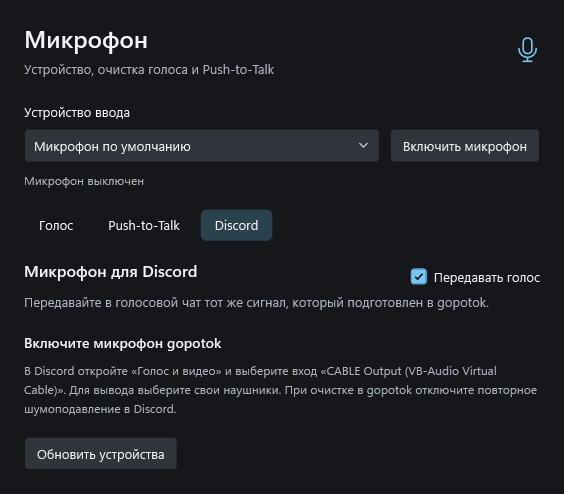
Select your physical microphone in gopotok, then enable voice output in its Discord tab. In Discord, choose CABLE Output as the input device and your headphones as the output.
You can test your voice in Discord before going live. Hold an assigned key if push-to-talk is enabled.