
Help topics
On this page
Cut a highlight from a recorded stream
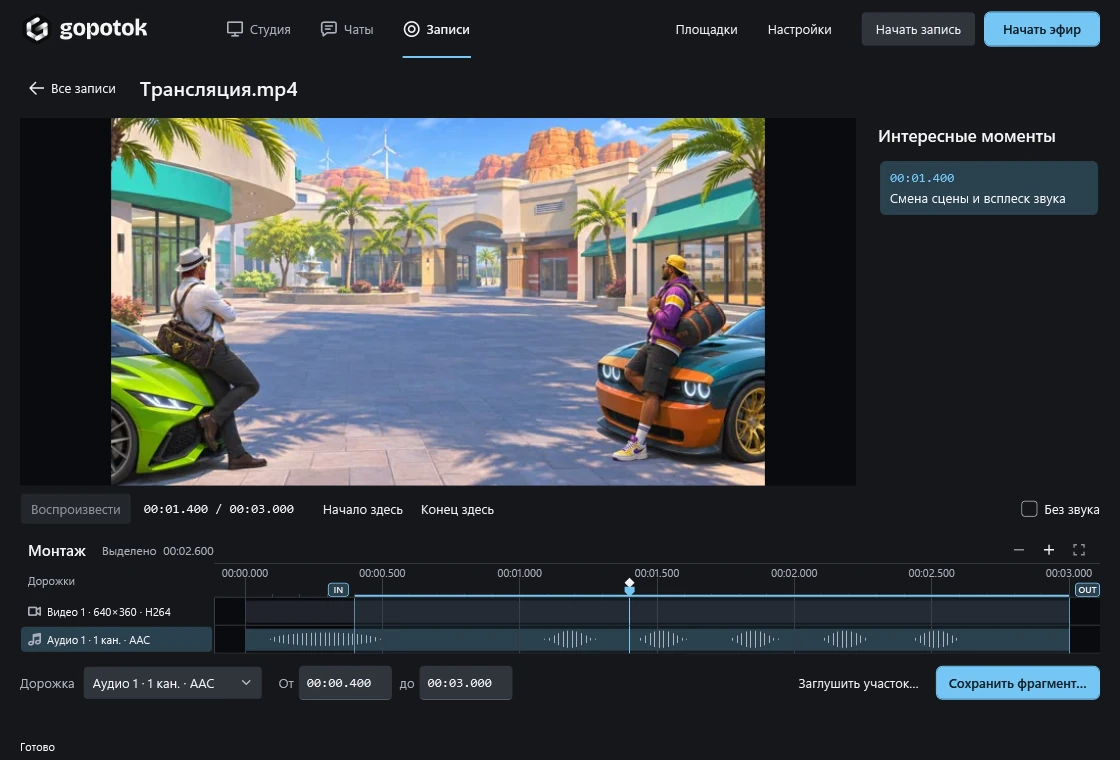
Open the stream archive in the editor, find a moment on the timeline and save it as a separate clip. Export video with sound or extract an individual audio track.
Open a stream recording
In the Recordings tab, select a thumbnail to open the editor. The gallery holds completed streams and local videos captured with Start recording. Select All recordings to return to the gallery.
Change the recording folder and format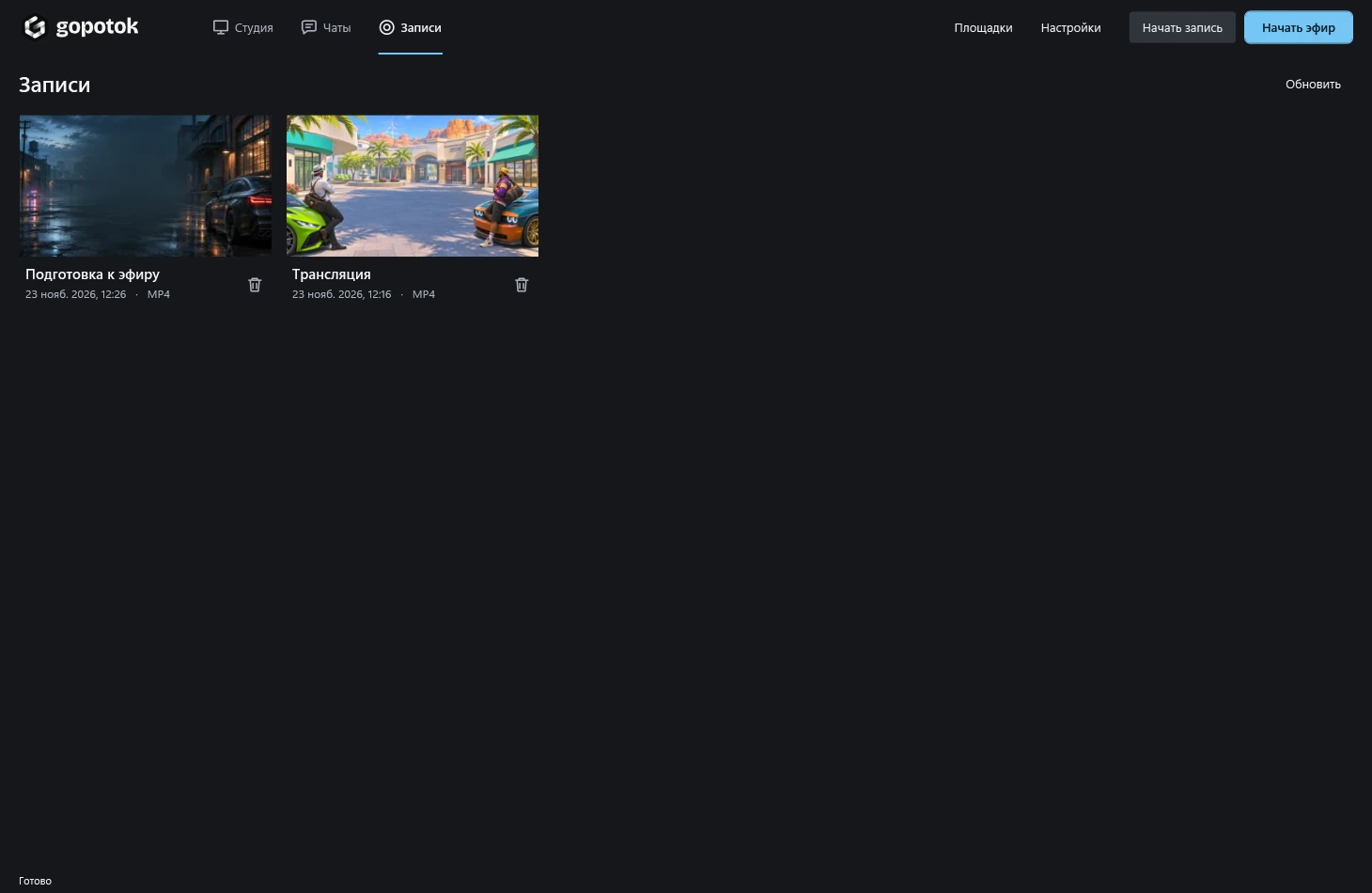
Find a highlight on the timeline
The studio marks short vocal reactions, audio peaks that coincide with movement on screen, and scene changes. Selecting a marker highlights up to eight seconds before the event and up to six seconds after it. Drag either boundary to refine the range. When moving the video to another drive, take its adjacent .highlights.json file with it.
Export all tracks or just the microphone
Choose All tracks for a clip with video and sound. To export only the voice, select the microphone track, then Save selection. A full recording also contains the stream mix and separate tracks for apps, music and alerts. Older recordings offer the tracks present in the file.
Trim the video or mute a passage
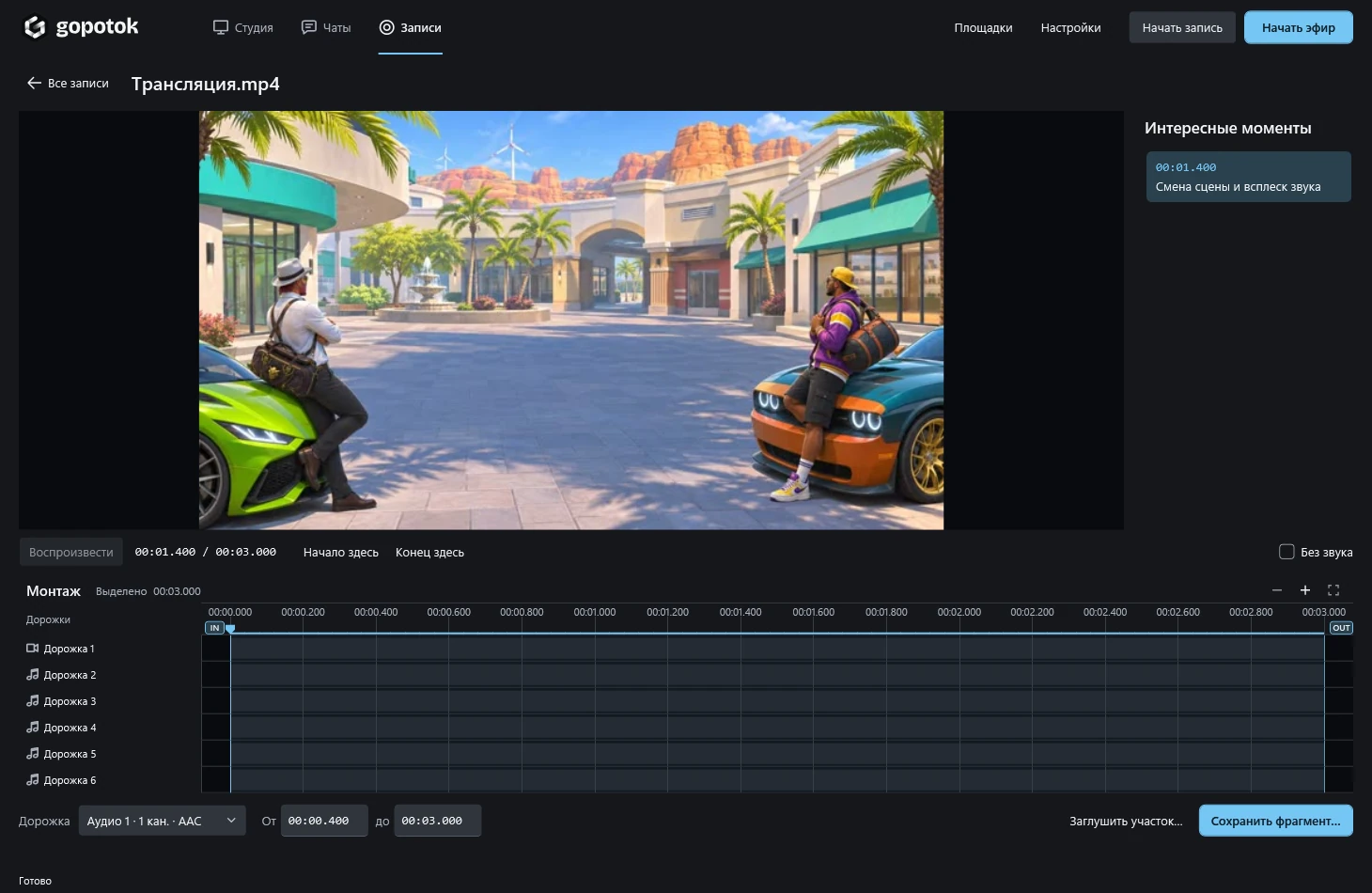
Zoom in and set the boundaries at the current frame with Start here and End here, or enter the times directly. Save selection exports the highlighted range. To remove a pause, choose All tracks and Save without selection. The editor joins the remaining parts in a new file.
To keep the timing intact, select one track. An audio track lets you mute the range. A video track lets you replace its frames with black.