Help topics
Guide steps
Start your first game stream
Capture your game, turn on the microphone and record a short test. Once you can hear your voice clearly over the game, connect your destination and go live.
Download for Windows x64Install gopotok for Windows x64
Run the installer and approve the Windows prompt. The package includes the media engine, voice models and virtual audio cable. If setup asks you to restart after installing the audio driver, restart your PC. Then open gopotok from the Start menu.
Video resolution and encoder settings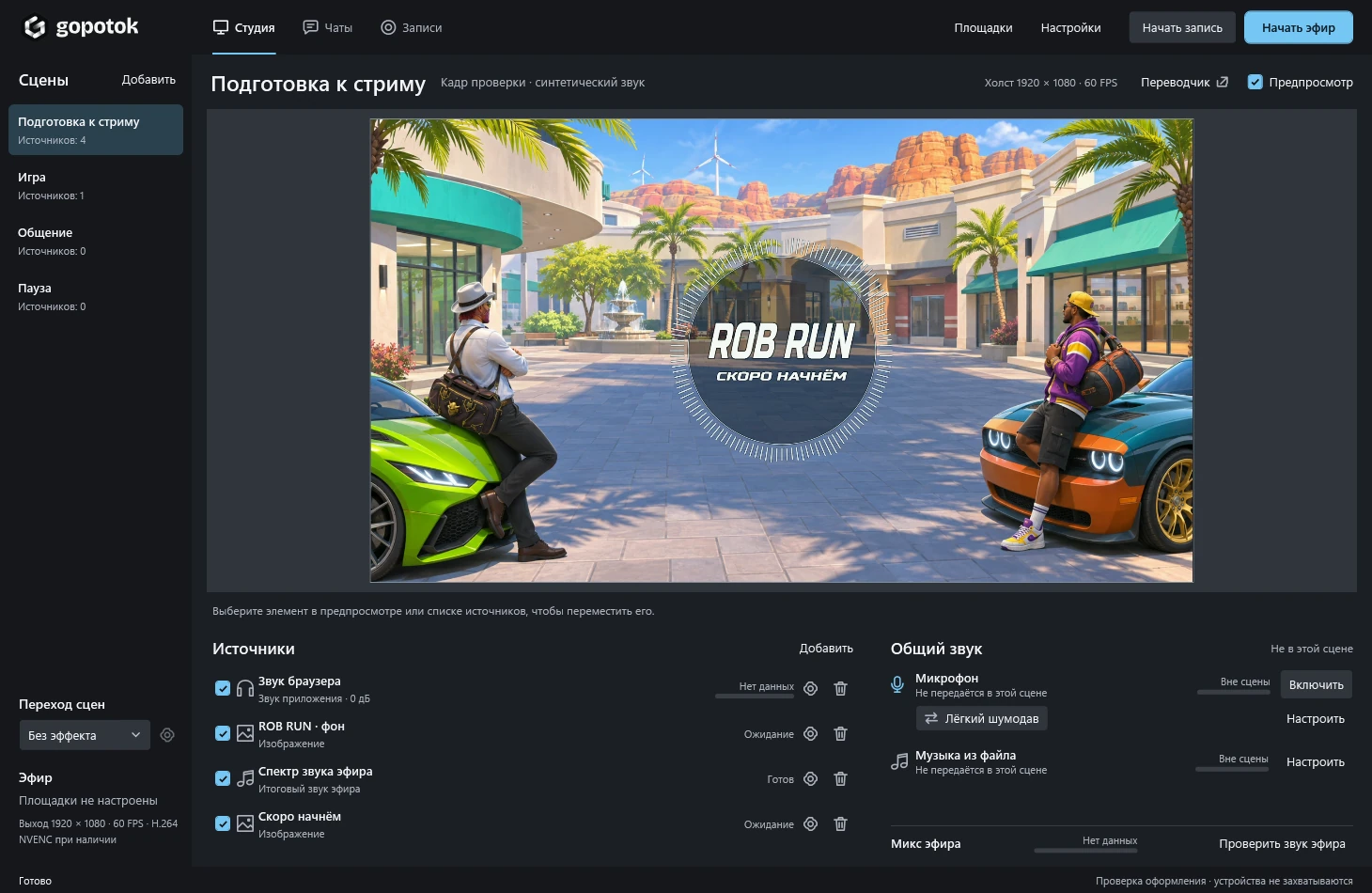
Add your game to a scene
Launch the game. Choose Add beside the scenes list to create a game scene. Under Sources, choose Add, then Game capture. Select the window and check its picture on the canvas. If the picture fills only part of the frame, select the source and choose Fit.
Game capture and source layout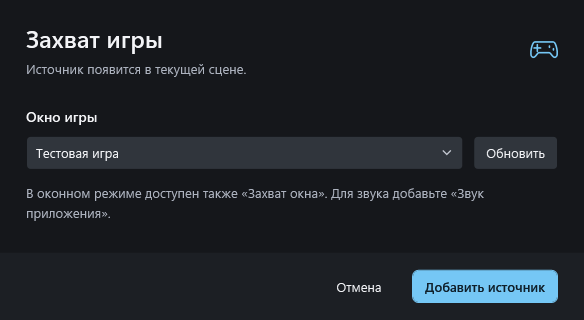
Connect your microphone and game audio
In the main audio panel, choose Configure beside the microphone, select your device and enable it. Under Sources, separately add Application audio and choose the game. Speak over the game and check both meters. If push-to-talk is enabled, hold any one of your assigned buttons.
Noise suppression and push-to-talk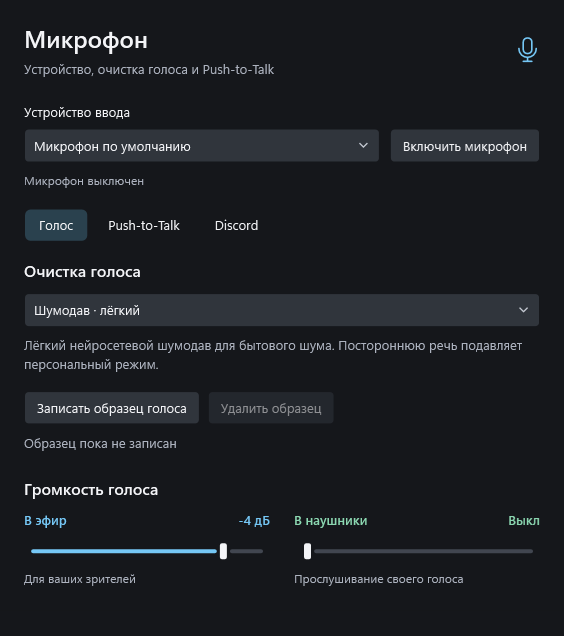
Listen to the mix your viewers will hear
In the main audio panel, choose Check stream audio and Record 12 seconds. Speak while the game is audible and play back the test. If the game drowns out your voice, lower the game source level and record another test.
Stream and headphone levels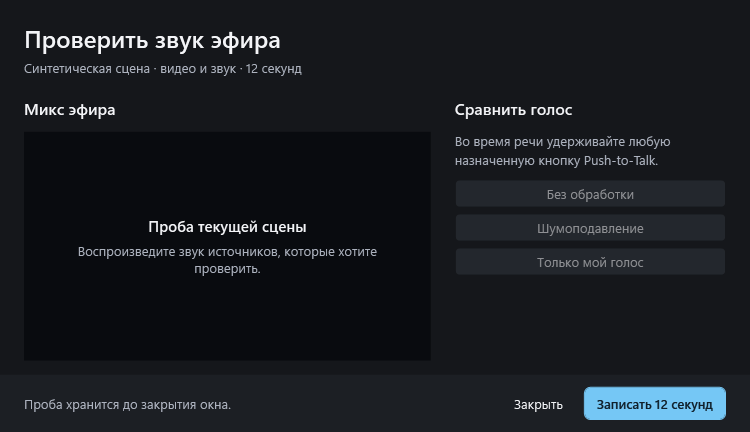
Connect a destination and go live
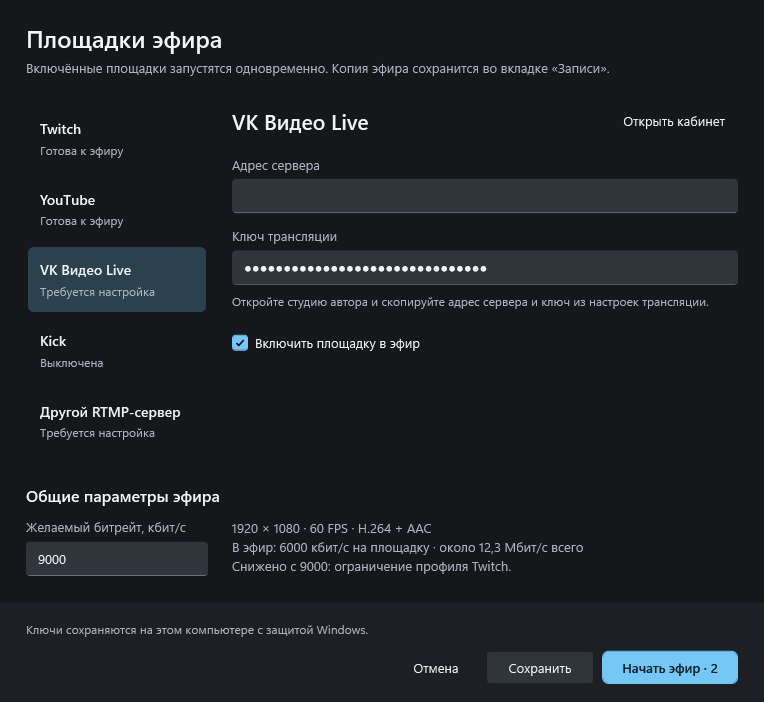
Open Destinations, choose a service and paste the key from its creator dashboard. For VK Video Live, also enter the server address. Enable the destination and save. Select Go live, review your audio sources and confirm. The studio displays the connection status.
Streaming destinations and output settings