
Help topics
On this page
Translate in-game voice chat
The translator shows subtitles from a selected game or app and reads your replies aloud. Incoming speech and outgoing replies have independent settings.
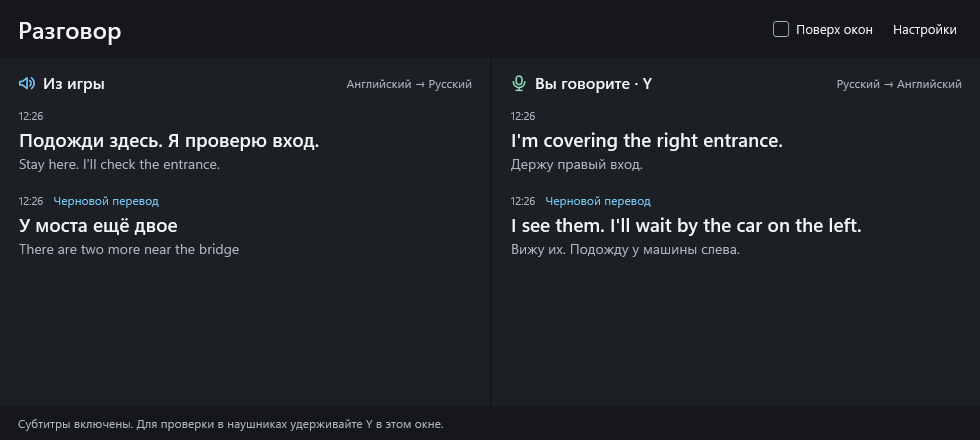
Turn on subtitles for other speakers
Open Settings → Translator. Choose your language and the game language. Enable subtitles for other speakers and select the app under the speech input setting. Open the translator from the studio. The transcript and its translation update as the speaker talks.
Move the translator to a second monitor or enable subtitles over a game running in windowed or borderless mode.
Preview a reply and send it to the game
Enable push-to-talk speech recognition and turn on the studio microphone. Hold Y in the translator window, speak, then release it to hear the translated reply in your headphones.
To reply in game, select the game under the voice chat setting, then choose CABLE Output as the game’s microphone. Keep your physical microphone selected in gopotok. The game window must be active when the reply is sent.
Choose languages, voices and game terms
Available languages are Russian, English, German, French and Spanish. If a character or location name gets translated as an ordinary word, add it to the game context field. Translated replies are spoken in the game language.
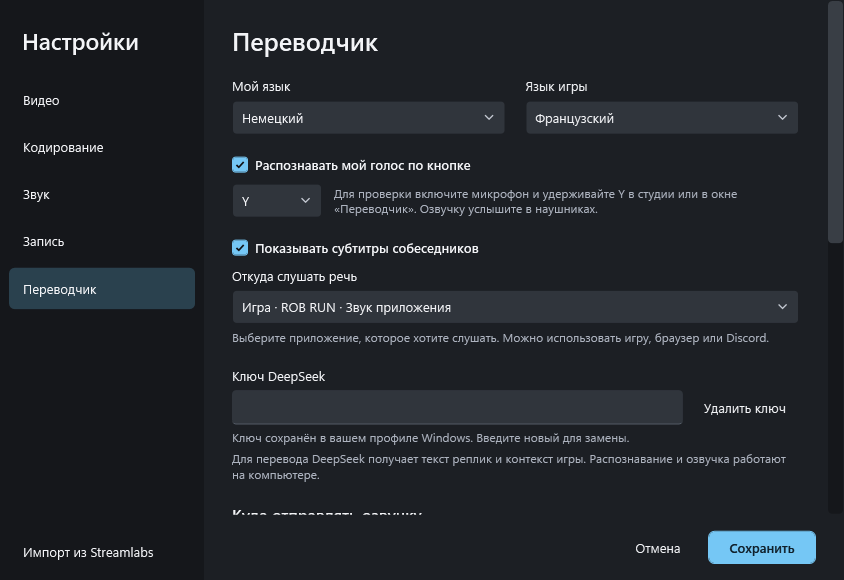
Set up DeepSeek and check what it receives
Enter your own DeepSeek key in the translator settings. Speech recognition and speech synthesis run on your computer. The service receives the transcribed phrases, the selected languages and any game context you entered. The key is stored encrypted in your Windows profile. Use Delete key to remove it.