
Help topics
On this page
Set your stream resolution, frame rate and bitrate
Set the canvas and output resolutions, frame rate and H.264 bitrate. Choose a separate quality level, file format and save folder for local recordings.
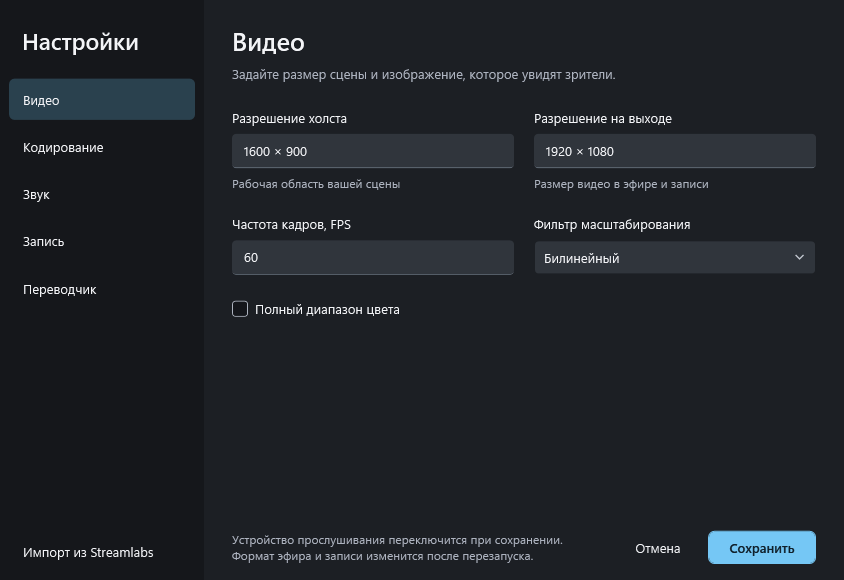
Set the canvas and output resolution
Open Settings → Video. Canvas resolution defines the space for arranging your sources. Output resolution sets the picture size in the stream and recording. If the output is smaller than the canvas, choose the scaling filter here. This section also contains the frame rate and color range.
NVENC, x264 and local recordings
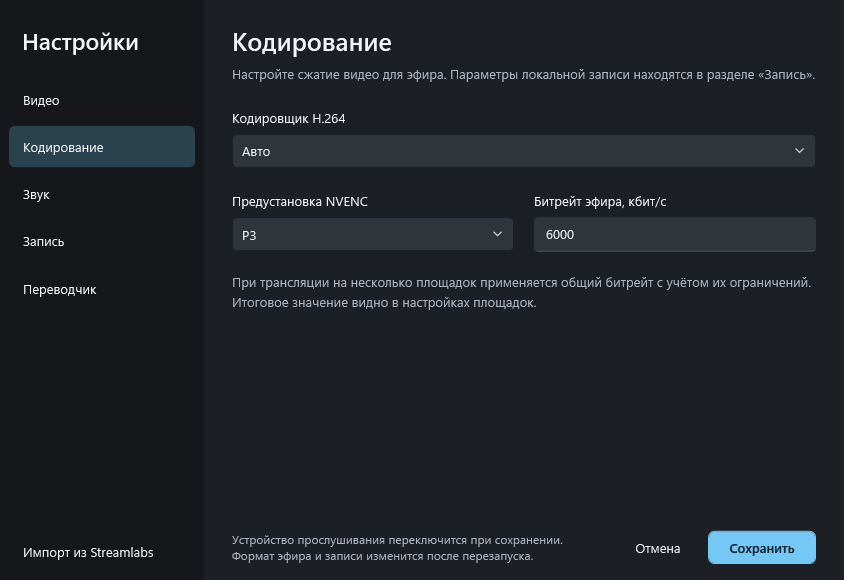
In Encoding, choose the H.264 encoder and set the stream bitrate. Auto uses NVIDIA NVENC when the hardware encoder is available and falls back to x264 on the CPU. If you use NVENC, you can also select its preset.
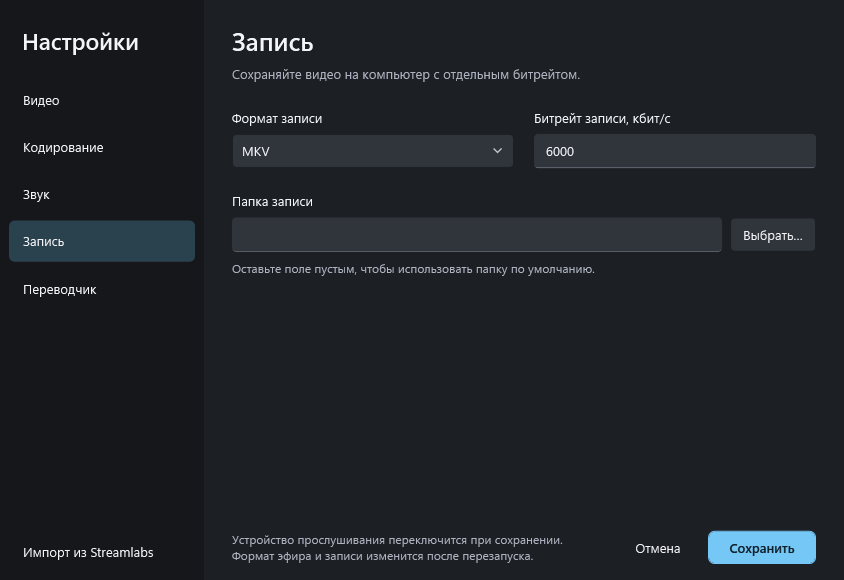
Under Recording, choose MKV or hybrid MP4, a separate recording bitrate and a save folder. Save the changes and restart the studio to apply the format.
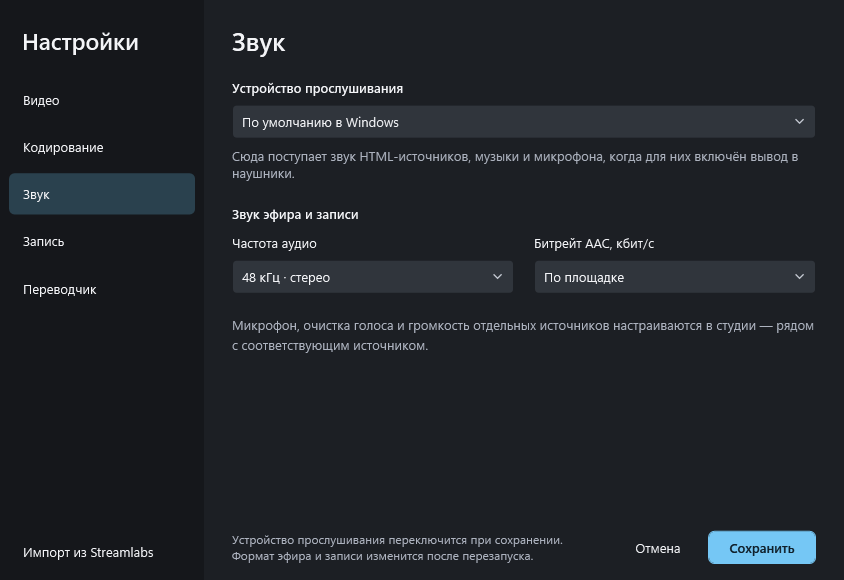
Choose headphones for monitoring
Under Settings → Audio, choose the monitoring device. Select specific headphones or follow the default Windows output. Once you save, this device receives microphone, music and HTML sources with headphone output enabled. The same panel sets the audio sample rate and AAC bitrate.
Import settings from Streamlabs Desktop
Select Import from Streamlabs and review the populated video, audio and encoding fields. Saving the import creates a backup of your previous gopotok project. Set up scenes and filters in the studio and enter stream keys under Destinations.
Interpret the render delay counter
The status bar shows how many frames per second missed their render deadline in the latest interval. Hover over the counter for the total since launch. If the interval rate returns to zero and the total stops rising, there are no new delays. The counter also runs while you preview a scene.
Change the display language
On first launch, gopotok uses your Windows display language. Open Settings → Interface and select English or Russian. The studio switches immediately. Choose Save to keep the language for future sessions, or Cancel to return to your previous language.