
Help topics
On this page
Mix your game, microphone and music
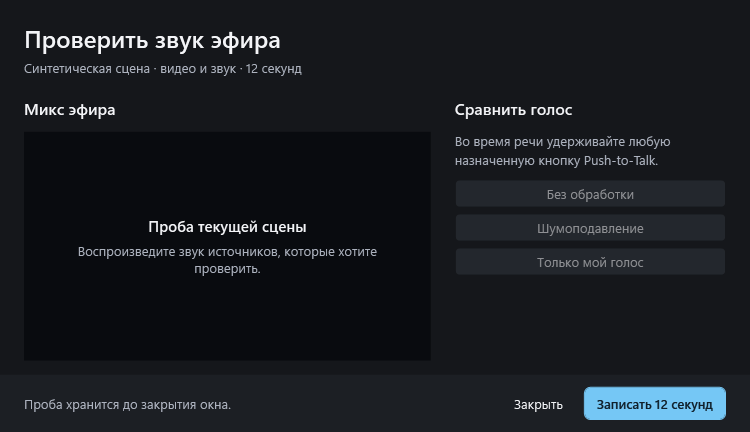
Set levels for the stream and your headphones separately. Record a short test of the current scene to check that the audience can hear your voice over the game.
Set music and alert levels for each output
Open the music file settings. The stream level controls what viewers hear. The headphone level controls your own mix. Keep music in the broadcast and lower it in your headphones to hear game footsteps. The microphone has the same two level controls.
To try a donation alert privately, enable only the headphone output in the HTML widget. Enable its stream and recording output when you want viewers to hear it.
Choose the monitoring device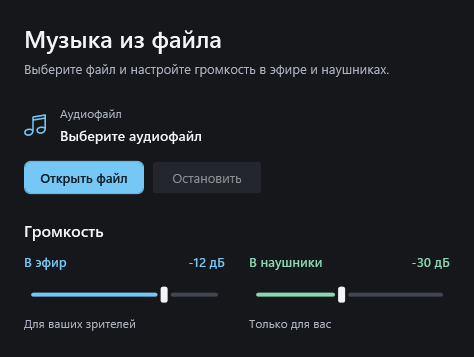
Capture audio from games, Discord and browsers
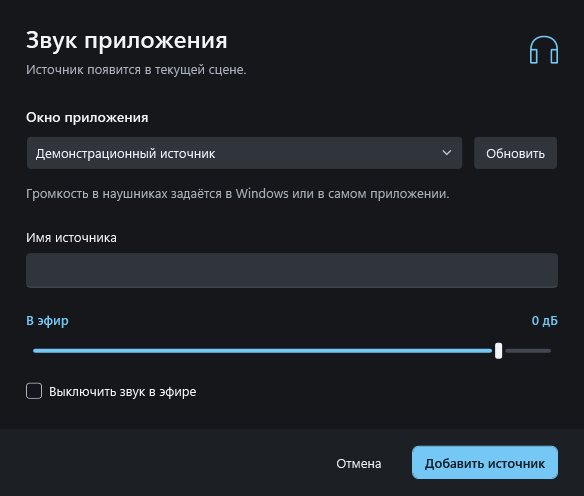
Add Application audio once for each window in the scene. You can then set separate stream levels for the game and the people in your call. Adjust how loud those apps sound in your headphones in the Windows volume mixer or the app itself.
If Discord prompts you to open the app, open its main window. Audio capture may not connect while Discord is only in the system tray.
Read the level meters
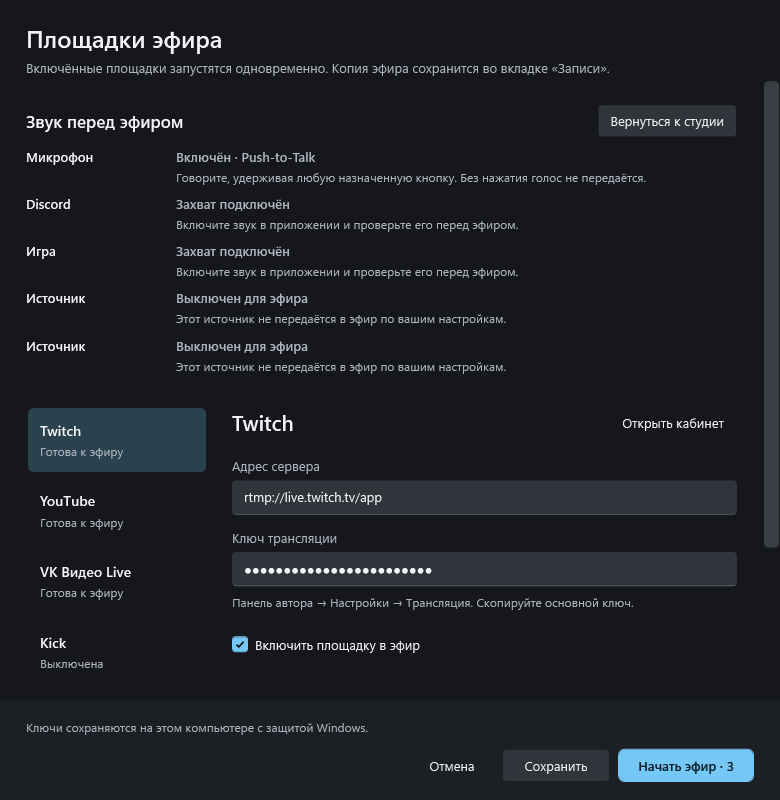
Select the scene, play some game audio and say a few words. The source meters account for processing, level settings and muted sources. Silence means the signal is below the meter’s threshold. A pink peak means the level has reached 0 dBFS. Lower the volume and repeat the loud passage.
Record a 12-second sound check
In the main audio panel, select Check stream audio, then Record 12 seconds. Speak while the game is audible and play back the test. To check camera sync, clap in view of the camera.
In Compare voice processing, play the same phrase through each available microphone mode. Choose Save MP4 before closing the window if you want to keep the video.