
Help topics
On this page
Open your stream chats in one window
Arrange your stream chats side by side to read messages across platforms. Each panel opens its own channel chat and remembers its address.
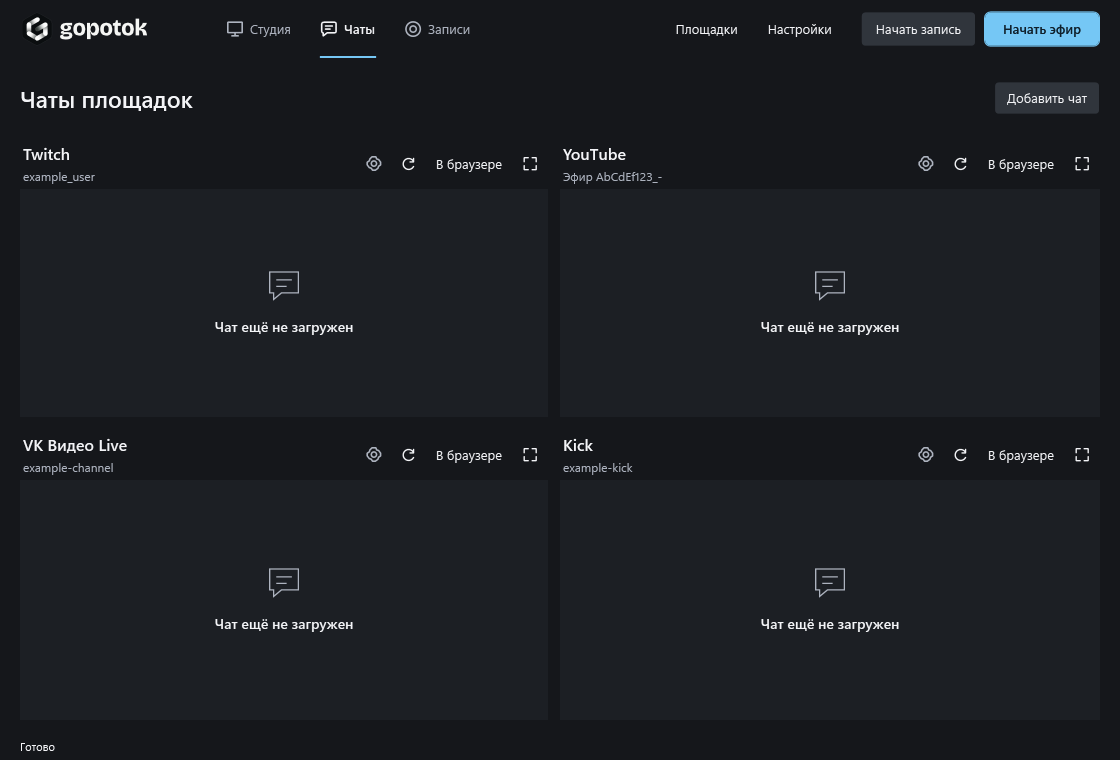
Add a channel or a YouTube live stream
Open Chats. Paste a link in the channel field and choose Open chat. For Twitch, Kick and VK Video Live, you can select a platform and enter the channel name. For YouTube, use the Share link from the specific live stream.
To open a channel from another platform, choose Add chat.
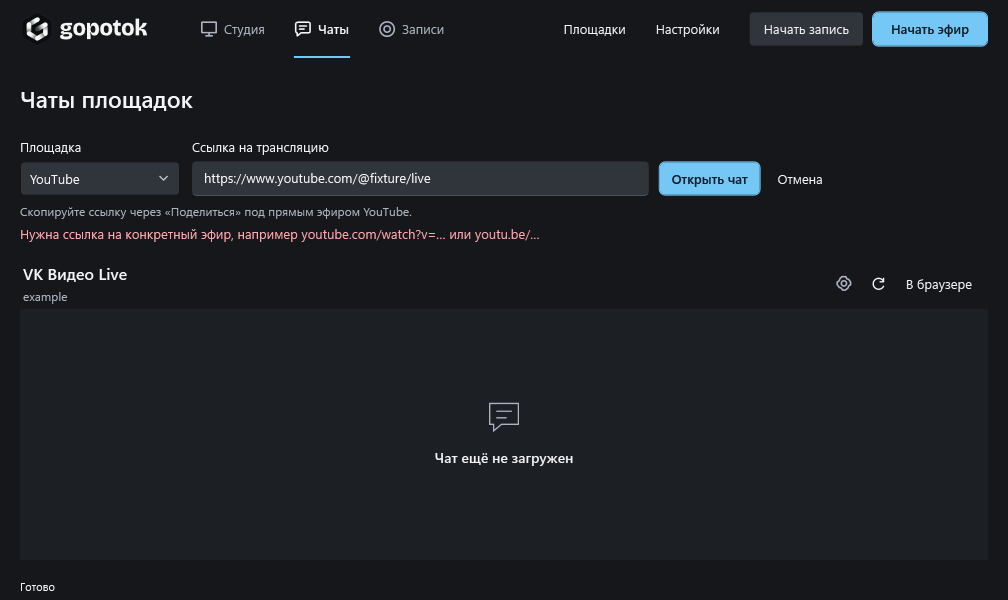
Read all chats or expand one
Use the button in a panel’s header to expand that chat. Select All chats to restore the other panels. You can switch to Studio or Recordings and return to the same pages and drafts.
Reply to a viewer or switch channels
Choose Open in browser in the relevant chat to sign in and reply from your platform account. To switch channels, open the gear in the panel header, enter the new address and select Open chat. Remove chat clears that platform’s saved address from the studio.