Help topics
On this page
Stream to several platforms at once
Connect Twitch, YouTube, VK Video Live, Kick or a custom RTMP server. Before each broadcast, choose your destinations and check the estimated upload bandwidth.
Connect a server and stream key
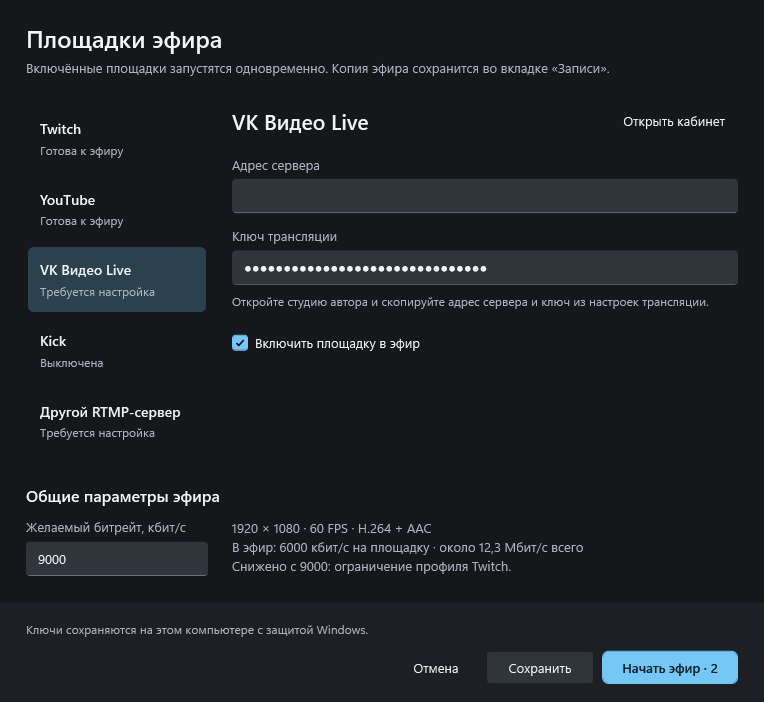
Open Destinations. Paste the key from the platform’s creator dashboard. VK Video Live also requires its server address. For a custom destination, use an RTMP or RTMPS address. Enable each destination you want to include and save the settings.
Your Windows account protects the saved keys. To remove a key, clear its field and save.
Check bitrate and upload bandwidth
Each active destination receives the same H.264 video and AAC audio. The studio limits the shared bitrate to what the most restrictive destination accepts. The Destinations window shows the bitrate per platform and the estimated total upload bandwidth. Each additional platform needs another copy of the stream.
Check sources before going live
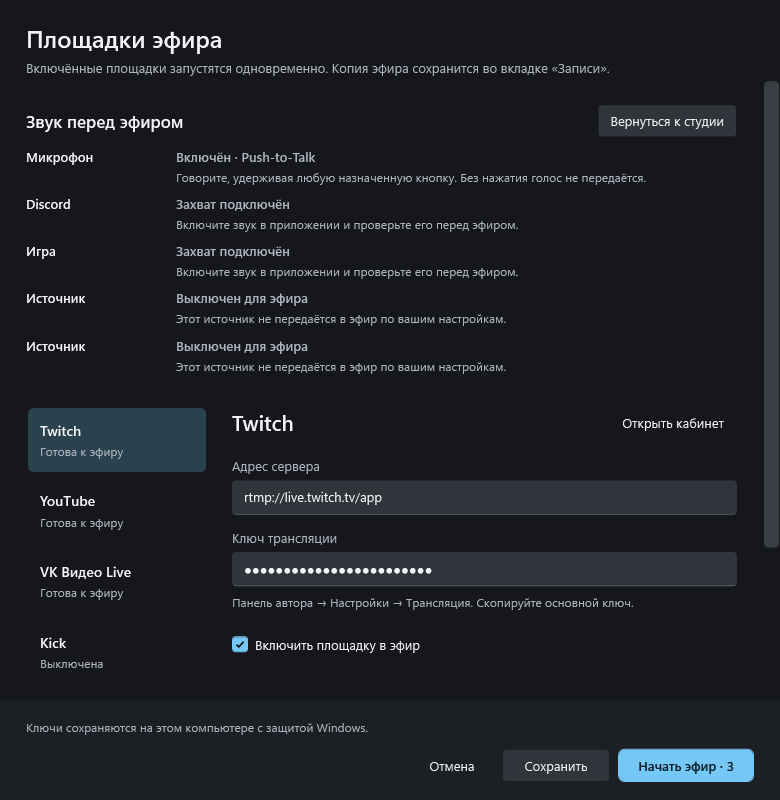
Select Go live and check the audio section. If game audio is missing, open the game and check its capture source. If the microphone is silent, check its state in the main audio panel. You can confirm the launch without a source you intend to leave silent.
Confirm in the destinations window. The studio shows the connection status for each platform.
Find the broadcast archive
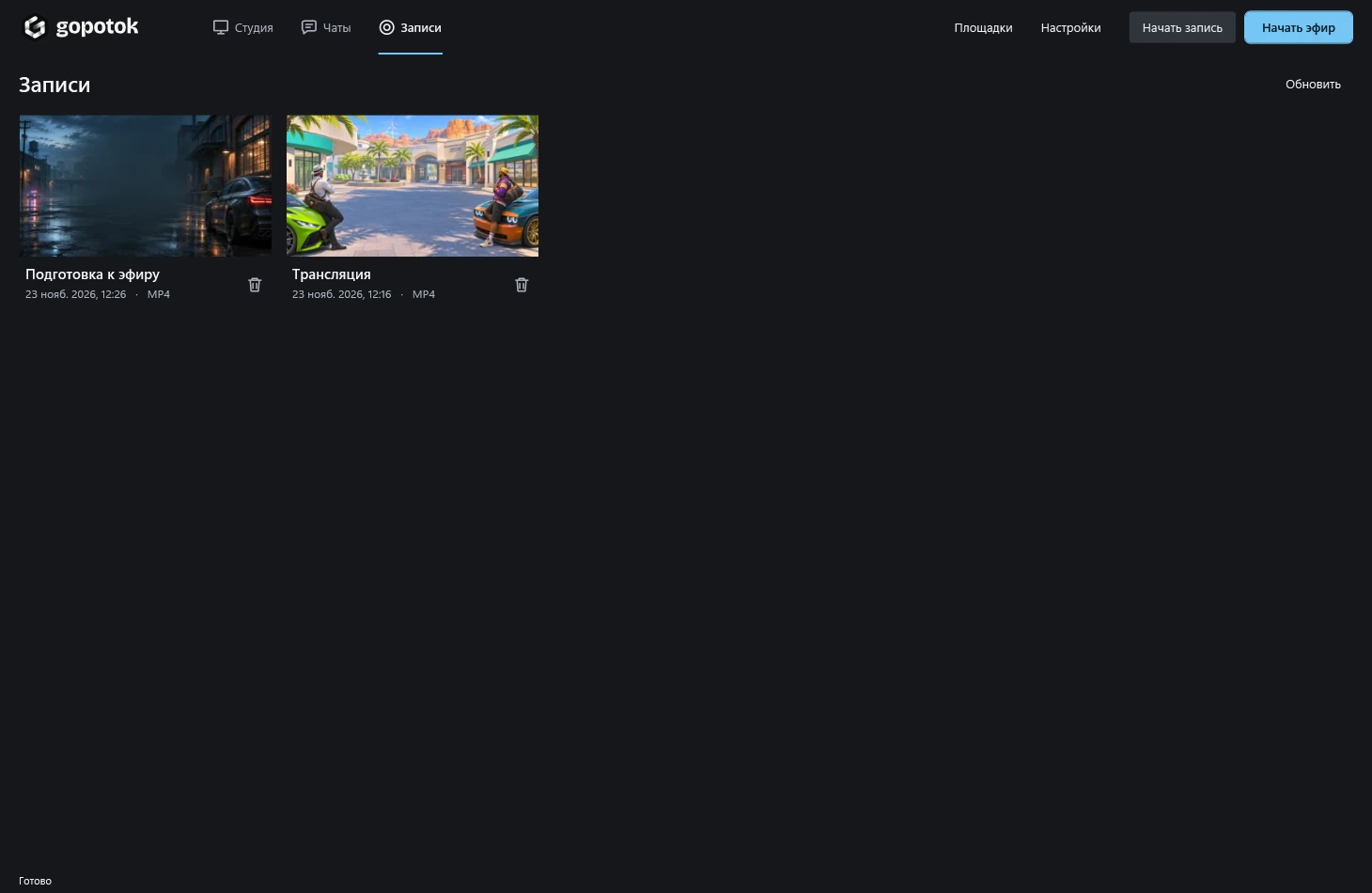
During a broadcast, gopotok saves the same video stream locally with separate audio tracks. If the archive stops recording, the stream status reports the problem. Once the broadcast ends, open Recordings and select its thumbnail to watch it or cut a highlight.
Find and export a stream highlight